

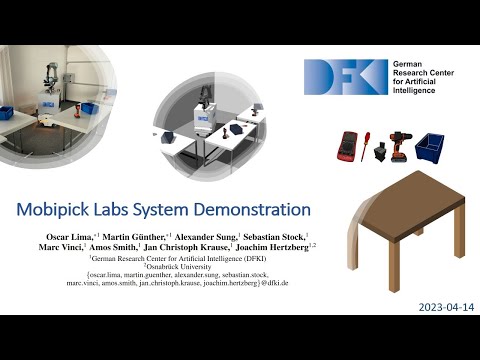
The tables demo consists of an environment with items on multiple tables, in which the robot shall
- find the box and place it onto the target table,
- find the multimeter and place it into the box,
- in any order,
- and react to changes to the environment, e.g. items being moved around during the demo.
For details about the event at which this demo was presented, see its (DFKI internal) Mobipick tables demo wiki page.
This demo might install a lot, depending on what you already have on your system. Your catkin workspace for mobipick, if you don't mind adding further repositories, or a new catkin workspace with only this repository is recommended to start with. vcs and wstool will be installed when needed, ROS and Python 3 are assumed to be available on your system.
./install-deps.sh
./build.sh
install-deps.sh imports the repositories listed in my.repos with vcs and then runs mobipick's
install-deps.sh, which installs everything else (ROS packages, MiR packages, ...) with
rosdep install --from-paths <src>. my.repos takes mir_robot from
the fork branch path-follower-critic: its DWB path follower critic and SBPL
settings are what the tables demo navigation is tested with (the apt ros-noetic-mir-navigation 1.1.8 gets
stuck often), and the multi-robot simulation (num_robots:=2 or 3) needs the map_ns/map_frame launch
args it adds. If you clone the repositories by hand instead, run
rosdep install --from-paths <src> -i -y --rosdistro noetic yourself so the source mir_robot gets its
dependencies.
Alternatively, you can use the Docker environment created by our colleague Andreas Bresser for a simple all-in-one quick start.
Start up the robot according to the (DFKI internal) instructions on the wiki, then:
roslaunch mobipick_bringup mobipick_bringup_both.launch  # already part of the startup instructions
roslaunch pbr_dope dope.launch
roslaunch tables_demo_bringup bringup.launch   # optional: world_config:=cic_tables (default: moelk_tables)
To start the full tables demo, then run:
rosrun tables_demo_planning tables_demo_node.py # optional: <number of target table>, e.g., "4"; default: 2To start the power drill pick&place demo, run:
rosrun tables_demo_planning pick_n_place_demo_node.pyOptionally, for making the robot speak, run this command on a PC with a speaker (e.g., your laptop):
rosrun espeak_ros espeak_nodeOptionally for visualization:
rosrun rviz rviz -d `rospack find tables_demo_bringup`/config/pick_n_place.rviz __ns:=mobipickroslaunch tables_demo_bringup demo_sim.launch
rosrun tables_demo_planning tables_demo_node.pyFor open-set objects, Grasplan requests candidates from AnyGrasp and owns the
MoveIt pickup execution by default. To use AnyGrasp's complete execution action
instead, launch with anygrasp_handles_execution:=true.
The optional components above for speaker and visualization work in simulation as well.
Goal of the robot in this demo is to
- test grasplan
- grasp multiple objects in simulation
- useful for debugging
roscore
roslaunch tables_demo_bringup demo_sim.launch
rosrun rviz rviz -d `rospack find tables_demo_bringup`/config/pick_n_place.rviz __ns:=mobipick
Move the robot to the appropriate table (robot_x:=12.43 robot_y:=2.21 robot_yaw:=1.5708) using RViz.
Pick
rosrun grasplan pick_obj_test_action_client __ns:=mobipick power_drill_with_grip table_1Optionally you can specify a list of objects to ignore/delete from planning scene. This will allow e.g. to pick a box with objects inside it. To run do:
rosrun grasplan pick_obj_test_action_client __ns:=mobipick power_drill_with_grip table_1 object_to_ignore_1 object_to_ignore_2 ...
rosrun grasplan pick_obj_test_action_client __ns:=mobipick klt table_1 multimeter_1
Place
rosrun grasplan place_obj_test_action_client __ns:=mobipick table_3 trueInsert
rosrun grasplan insert_obj_test_action_client __ns:=mobipick klt_3 trueIf you want to grasp the other objects, you can use the following robot pose: robot_x:=10.46 robot_y:=2.47 robot_yaw:=3.1415.
If you want to grasp another object after picking, please place the object first.
Goal of the robot in this demo is to
- fetch the power drill from the table,
- hand it over to a person,
- return empty-handed to its home position.
roslaunch mobipick_bringup mobipick_bringup_both.launch
roslaunch pbr_dope dope.launch
roslaunch mobipick_pick_n_place mobipick_pick_n_place.launch world_config:=moelk_tables
rosservice call /mobipick/continue_statemachineUsed to send hierarchical tasks directly to the planner and executor.
On the real robot:
roslaunch mobipick_bringup mobipick_bringup_both.launch
roslaunch pbr_dope dope.launch
rosrun tables_demo_planning task_server_node.py
For Gazebo:
roslaunch tables_demo_bringup demo_sim.launch
rosrun tables_demo_planning task_server_node.py
Now tasks can be sent to the robot using the ROS client provided:
rosrun tables_demo_planning task_server_client.py task_name parameter_1 ... parameter_nDepending on the chosen task, different parameters have to be sent to the server. Available tasks and their parameters can be seen here: hierarchical_domain.py.
Example task to move the multimeter_1 from its current location to table_2:
rosrun tables_demo_planning task_server_client.py move_item mobipick multimeter_1 table_2Additionally it is possible to send tasks to the task server using the provided
ROS action message.
The default topic to send ROS actions to is /mobipick/task_planning.
Install and source the dot_graph_visualization rqt plugin, then call it with:
rqt --standalone dot_graph_visualizationThis section documents the launch file structure in mobipick_labs and
mobipick, with a focus on how to add a new "world config" (i.e., the config
files required to run the system in a new environment / with a different table
arrangement etc.).
The top-level launch file for the Gazebo simulation is demo_sim.launch.
roslaunch tables_demo_bringup demo_sim.launch world_config:=cic_tablesworld_config: Defines which environment to run in, including the arrangement of objects and tables.
- Options:
moelk_tables,cic_tables - Effect:
- Passed to
mobipick_gazebo/launch/worlds/<world_config>_spawn_sim_objects.launch, which loads the Gazebo world and spawns the scenario-specific table and object arrangement. - Includes
includes/navigation/<world_config>.launchto set upmove_baseand localization with the appropriate maps and virtual walls. - Passed to
tables_demo_bringup/launch/bringup.launchto load:tables_demo_bringup/config/<world_config>_planning_scene.yamlfor grasplan (defines MoveIt planning scene collision boxes, including tables, walls, and ceiling).mobipick_pick_n_place/config/<world_config>_demo.yamlfortables_demo_planning(defines move_base target poses in front of tables, home pose, handover pose, etc.).
- Passed to
start_ground_truth_viz (default true): starts
sim_ground_truth_viz, which publishes the
Gazebo tables and objects (oriented boxes and URDF meshes) for the RViz group
Ground truth (sim), so perception results can be checked against the truth.
It only reads Gazebo while RViz (or anyone) subscribes.
Each world_config is characterized by four scenario-specific launch and YAML files:
-
Spawn Simulation Objects:
mobipick/mobipick_gazebo/launch/worlds/<world_config>_spawn_sim_objects.launch- Purpose: Starts Gazebo with a given world and spawns the Mobipick, tables and objects.
-
Base Pose Configuration:
mobipick/mobipick_pick_n_place/config/<world_config>_demo.yaml- Purpose: Defines
move_basegoal poses in front of the tables, home pose, handover pose, and other parameters.
-
Planning Scene Configuration:
mobipick_labs/tables_demo_bringup/config/<world_config>_planning_scene.yaml- Purpose: Defines planning scene boxes for MoveIt (tables, walls, ceiling, other static obstacles); also used by grasplan (for picking and placing from tables).
-
Navigation Launch File:
mobipick_labs/tables_demo_bringup/launch/includes/navigation/<world_config>.launch- Purpose: Launches
move_basewith the appropriate map and virtual walls matching the environment and table arrangement. Maps are typically stored in thepbr_mapsrepository.
-
Real Robot:
- Only Base Pose Configuration (2) and Planning Scene Configuration (3) are required.
- Launch only
bringup.launch.
-
Gazebo Simulation:
- All four files are required.
- Launch
demo_sim.launchwhich orchestrates the entire setup.
To add a new world_config and adapt the demo to a new physical environment, follow these steps:
-
Map the Environment:
- Use the MiR web interface to map the new environment.
-
Define Forbidden Areas:
- In the MiR web interface, draw forbidden areas for tables and other obstacles.
- Note: Be precise; overly generous forbidden zones may prevent the robot from navigating close to tables.
-
Determine move_base Goal Poses:
- Launch RViz and use it to send the robot to various poses in front of each table.
- Move the robot arm to the
observe100cm_rightconfiguration using:
roslaunch mobipick_moveit_config moveit_rviz.launch
- Verify that the front edge of each table is just visible in the camera image.
- While navigating, run:
rostopic echo /mobipick/move_base/goalCapture the poses displayed in the terminal and use them to create the
mobipick_pick_n_place/config/<world_config>_demo.yamlfile (Base Pose Configuration). -
Create Planning Scene Boxes:
-
With the robot arm still in the
observe100cm_rightconfiguration, record a rosbag while manually controlling the robot to drive slowly around the scene, observing all tables and their edges. -
Use the recorded rosbag with the helper launch file to generate
mobipick_labs/tables_demo_bringup/config/<world_config>_planning_scene.yaml(Planning Scene Configuration) by running:roslaunch grasplan find_planning_scene_boxes_helper.launch
-
If a Gazebo simulation for the new environment is desired, proceed with the following:
-
Export the Map:
-
Use the MiR web interface to export the map, or run:
rosrun map_server map_saver
-
-
Process the Maps:
- Extract both the regular occupancy map and the forbidden zones map (virtual walls).
- Convert these maps to PNG format.
- Create accompanying YAML files and save them in the
pbr_mapsrepository.
-
Create Navigation Launch File:
- Develop a launch file that loads the processed maps.
- This will be your
mobipick_labs/tables_demo_bringup/launch/includes/navigation/<world_config>.launch(Navigation Launch File).
-
Create Gazebo Launch File:
- Develop a Gazebo launch file that aligns table positions with the new map.
- This will be your
mobipick/mobipick_gazebo/launch/worlds/<world_config>_spawn_sim_objects.launch(Spawn Simulation Objects).
This repo has a pre-commit check that runs in CI. You can use this locally and set it up to run automatically before you commit something. To install, use pip:
pip3 install --user pre-commitTo run over all the files in the repo manually:
pre-commit run -aTo run pre-commit automatically before committing in the local repo, install the git hooks:
pre-commit installIf you use this work in your research, consider citing our PlanRob 2023 paper:
@inproceedings{lima2023physics,
  title={A Physics-Based Simulated Robotics Testbed for Planning and Acting Research},
  author={Lima, O and G{\"u}nther, M and Sung, A and Stock, S and Vinci, M and Smith, A and Krause, JC and Hertzberg, J},
  booktitle={ICAPS Workshop on Planning and Robotics (PlanRob 2023)},
  year={2023}
}